## Overview
CJ Affiliate’s integration through Google Tag Manager requires three tags to be hosted within your GTM container. The first tag is a hardcoded Custom HTML container that calls our tracking server. The second two tags leverage CJ’s tag template to map your data objects and variables to our tracking parameters for both site pages and the confirmation page. The instructions below outline the steps required to set up all three tags. For a more detailed walkthrough, please refer to [this YouTube video](https://www.youtube.com/watch?v=n8DlG1c7YVs) as well.
### Tag #1 - Custom HTML
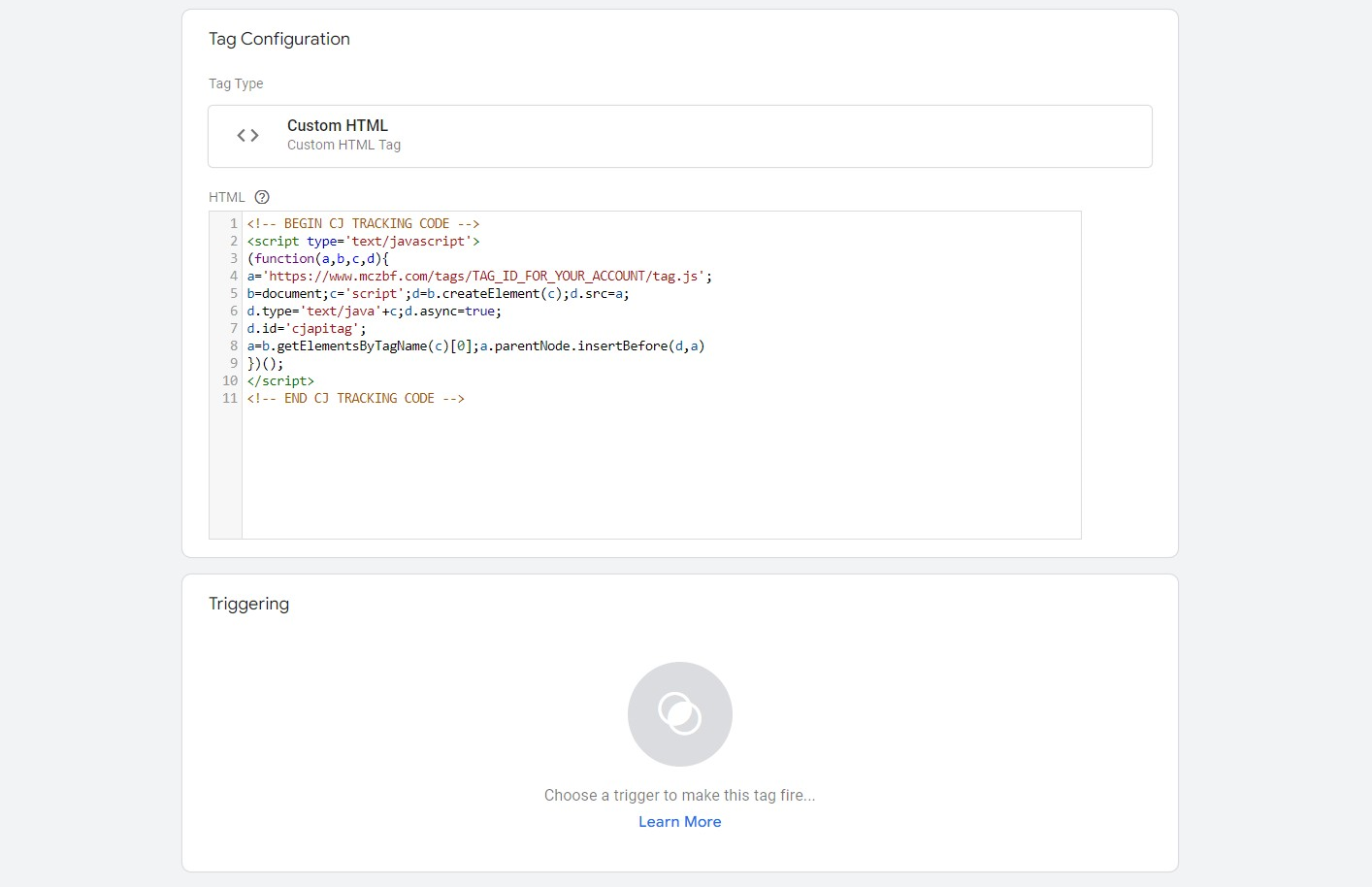
This section contains the hardcoded script tag for the network call to CJ’s tracking server.
1. Within the Tags tab, click “New”
2. Under Tag Configuration Select Custom HTML Tag by clicking on the “pencil” icon and follow the next steps
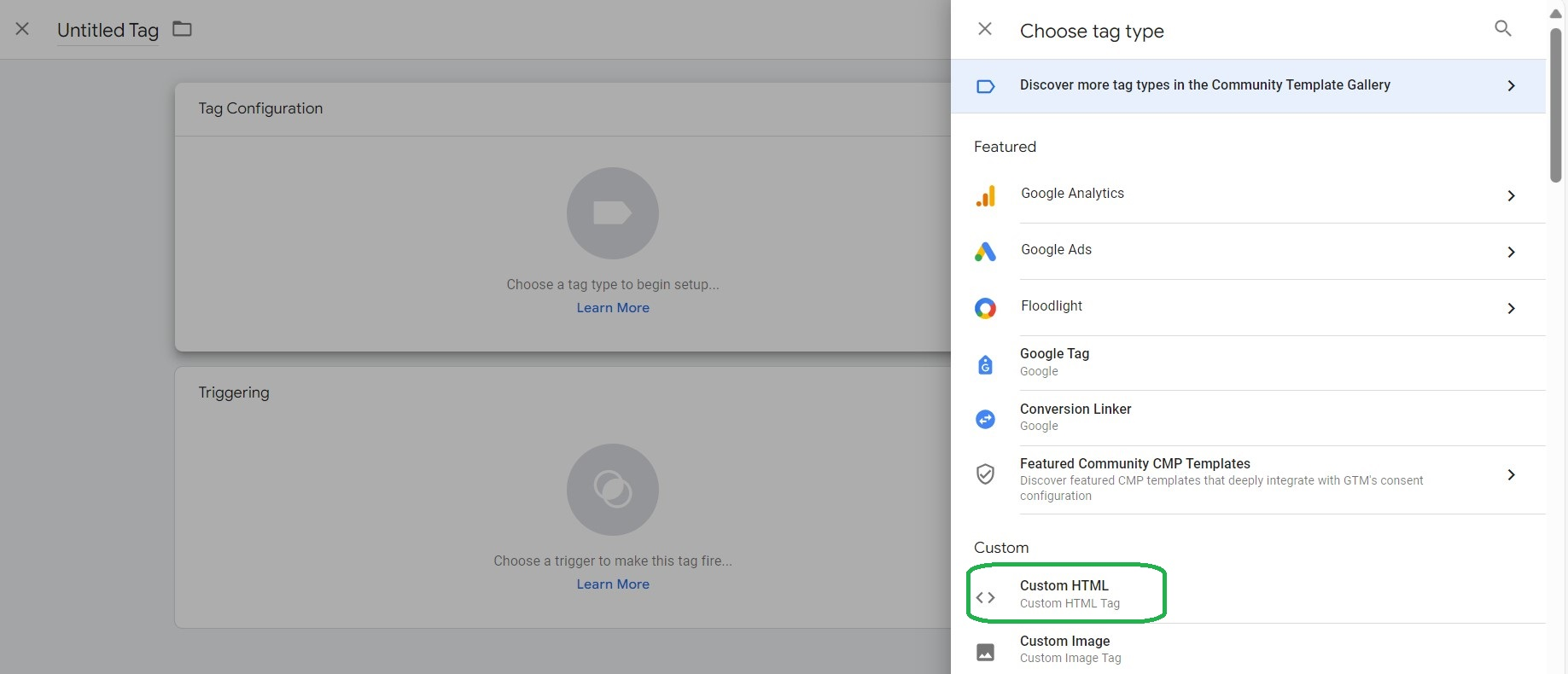
3. Insert the "script" tag below if you plan to use server-side cookie integration, and include the Tag ID specific to your account. Please contact your CJ team member to receive the Tag ID value.
```html
```
4. Click "Save"
### Tag #2 – Site Page Tag
This section contains example code for your Site Page Tag that will go on all pages of your site that are not transaction confirmation or purchase confirmation pages. This section also contains the list of required and optional parameters you can send in your Site Page Tag.
1. Within the Tags tab, click “New”
2. Click Tag Configuration
3. Select Discover more tag types in the Community Template Gallery
4. Click on the search icon and search for CJ Affiliate - Universal Tag
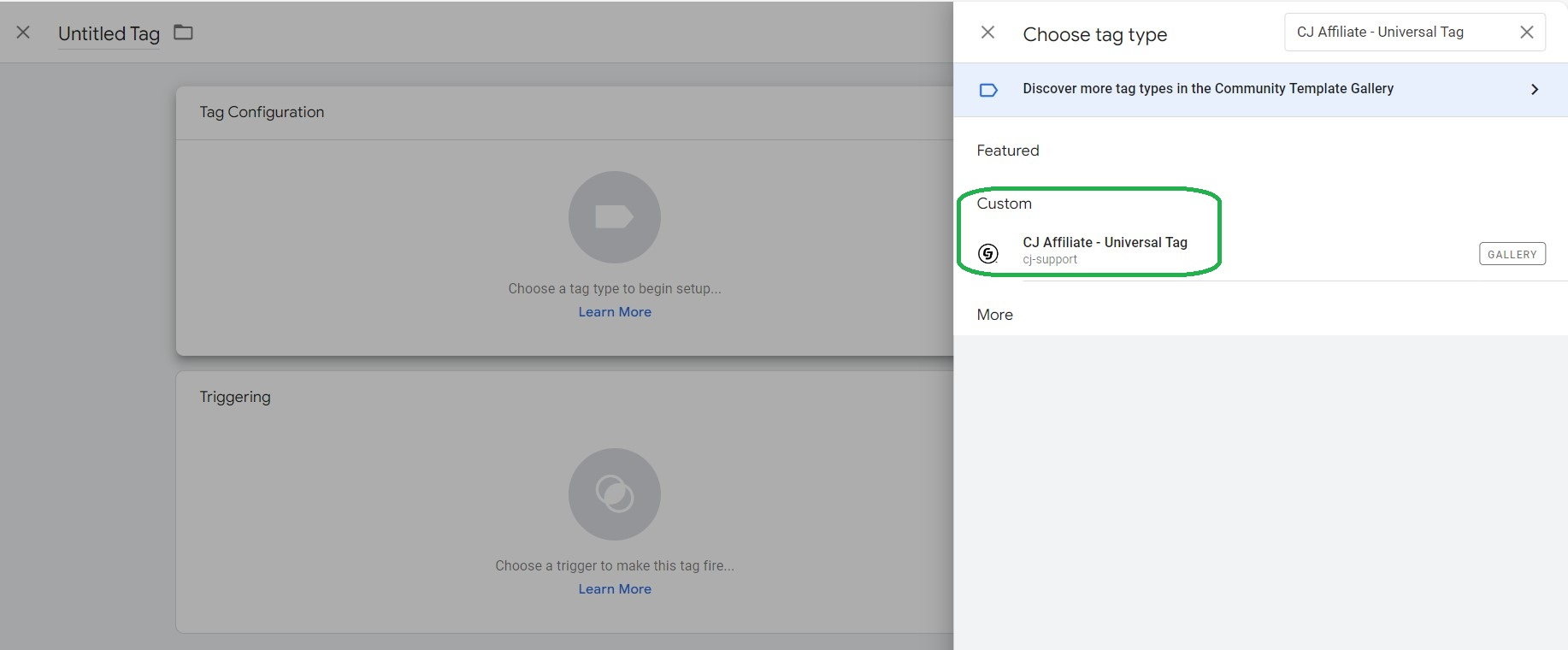
5. Click on the tag template and then select Add to workspace
6. Under Data Type enable the toggle for Page Data
7. Map the Page Type field to a variable for identifying the page the customer is on. In other words, for the Page Type settings, you need to create different categories based on their functional role. For example, for the home page, you can use 'homepage', for the shopping cart 'cart', etc. Please see below for the full list of accepted Page Type values and apply as many as possible that are applicable to your site.
PAGE TYPE ACCEPTED VALUES
| Page Type | Advertiser Vertical | Additional Notes |
|-------------------------|--------------------------------------------------|-------------------------------------------------------------------------------------------------------------|
| accountCenter | All Verticals | Any pages within the account center after the user has logged in |
| accountSignup | All Verticals | |
| applicationStart | Finance Only | |
| branchLocator | Finance Only | |
| cart | Retail, Network Services, and Travel Only | Pass all items in the cart, if possible. Follow the format outlined in the Site Tag code example |
| category | Retail, Network Services, and Finance Only | |
| conversionConfirmation | All Verticals | |
| department | Retail, Network Services, and Finance Only | |
| homepage | All Verticals | |
| information | Travel Only | |
| productDetail | Retail, Network Services, and Finance Only | |
| propertyDetail | Travel Only | |
| propertyResults | Travel Only | |
| searchResults | All Verticals | |
| storeLocator | Retail and Network Services Only | |
| subCategory | Retail, Network Services, and Finance Only | |
8. Map the remaining attributes listed in the template to your own variables.
a. To receive Cross Channel Journey reporting from CJ, be sure to map all attributes listed in the Site Page Tag Parameters table below. Detailed descriptions of attributes for Cross Channel Tracking are listed in the Referring Channel section of this page.
b. Detailed descriptions of attributes for Advanced Tracking are listed in the Item Level Details section of this page.
c. Detailed descriptions of the optional attributes in the Additional Parameters section of the template are available on [this page](https://developers.cj.com/docs/advertiser-site-tracking/vertical-parameters).
SITE PAGE TAG PARAMETERS
| Parameter | Type | Description |
|-------------------|---------------------------|-------------------------------------------------------------------------------------------------------------------------------------------------------------|
| Company ID | Id | This value is set to your CJ Enterprise ID, which is a static value provided by CJ. |
| Page Type | See 'Page Type' table | See 'Page Type' table for a list of accepted values. |
| Referring Channel | See list of expected values| Referring channel the user was referred by before arriving at your site. This value only needs to be populated on the landing page where the user first arrives. This parameter must be passed in order to utilize CJ’s Cross Channel Journey insights. Expected values: Affiliate, Display, Social, Search, Email, Direct_Navigation. |
| Order Subtotal | Decimal | Subtotal of the shopping cart. This should only be populated when the user is on a shopping cart page. It should not include taxes or shipping costs. |
9. Click on the drop down for Advanced Settings to view additional options.
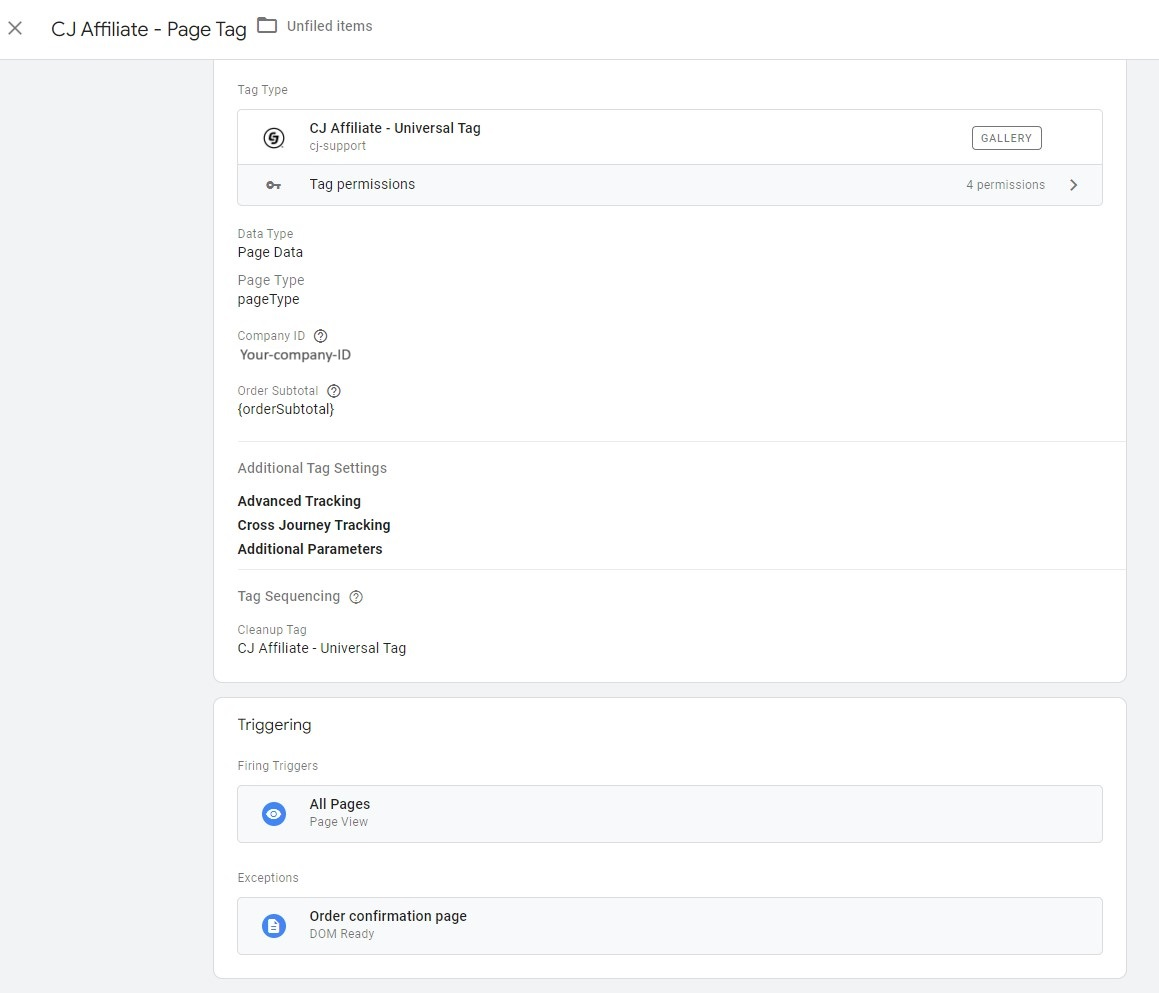
10. Select Tag Sequencing > Fire a tag after [your current tag name] fires > CJ Universal Tag Container tag
11. Under Triggering, select a trigger that fires the tag on all pages **except** the confirmation page
12. Choose the Add Exception option under Triggering
13. Choose or create an exception that doesn't fire the page tag on the confirmation page
14. Select Save
### Tag #3 – Conversion Tag
This section contains steps for your CJ Conversion Tag that will report transactions that occur on your website to CJ. This section also contains the list of required and optional parameters you will send in your conversion tag.
1. Within the Tags tab, click “New”
2. Click Tag Configuration
3. Select Discover more tag types in the Community Template Gallery
4. Click on the search icon and search for CJ Affiliate - Universal Tag
5. Click on the tag template and then select Choose Template
6. Under Data Type enable the toggle for Order Data
7. Enter your account-specific fields below. These values should be provided by your CJ team member.
a. Company ID: Please contact your CJ team member to receive the Company ID value.
b. Action Tracker Id: Please contact your CJ team member to receive the Action Tracker ID value.
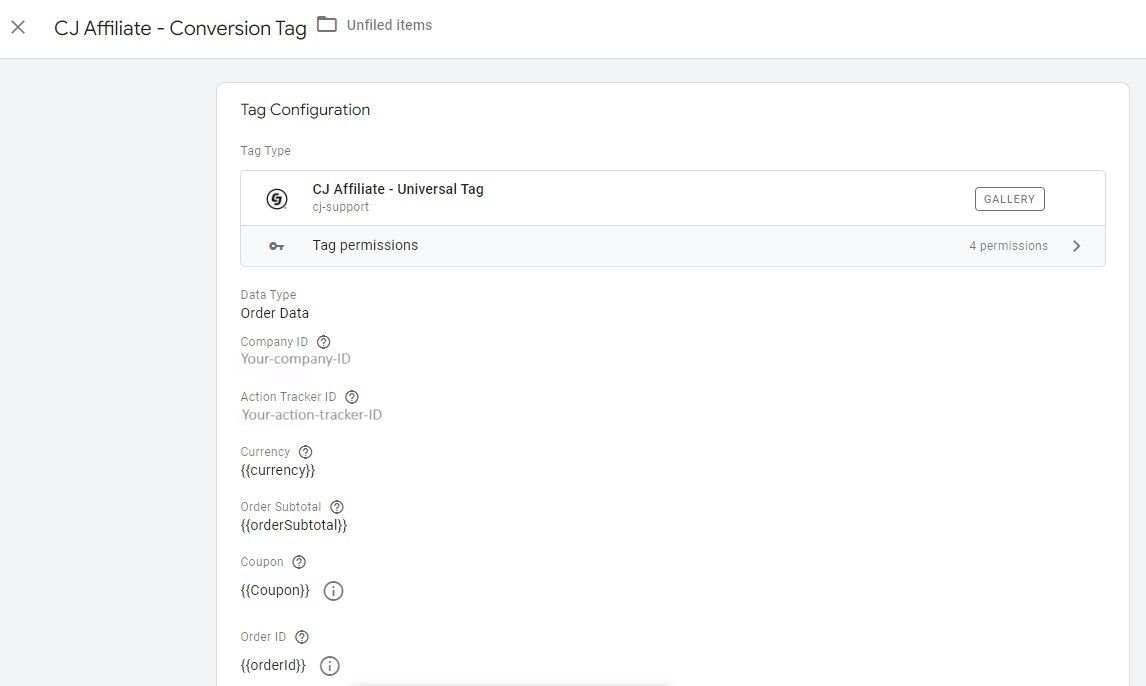
CONVERSION TAG PROPERTIES
| Tag Property | Description & Examples | Expected Format | Requisite |
|---------------------|-------------------------------------------------------------------------------------------------------------------------------------------------------------------------------------------------------|----------------------|------------------------|
| Action Tracker ID | This is a static value provided by CJ. Each action will have a unique actionTrackerId value. Example: `actionTrackerId: '123456'` | Numeric | Mandatory |
| Company ID | This value is set to your CJ Enterprise ID, which is a static value provided by CJ. | Numeric | Mandatory |
| Order ID | The orderId is a unique identifier, such as an order identifier or invoice number, which must be populated for each action. It is used to reconcile orders in your system with CJ to validate each sale or lead.
This value will be truncated after the 96th character.
Only alphanumeric characters, dashes, and underscores can be included in the orderId field.
CJ prohibits the submission of personally identifiable information in the orderId field, such as a full or partial email address. | Alphanumeric | Mandatory |
| Order Subtotal | The amount value should not include shipping or tax. CJ assumes the amount value is in the currency specified in the currency parameter. If you specify a currency other than your functional currency, the system converts the amount value to an amount in your functional currency using a current conversion rate. | Decimal | Mandatory |
| Whole Order Discount | Discount associated with the order in the currency parameter. | Decimal | Mandatory |
| Currency | Identifies the currency used to determine the order amount. This three-letter currency code (e.g., USD, EUR) should be specified in the currency field of the `cj.order` object. If no value is provided, product prices will default to your functional currency. However, if the currency field is left blank (i.e., `cj.order.currency` is defined but contains no value), a transaction error will occur. You can manually enter a static currency code or use a dynamic variable that captures the correct value from your site.
For a list of supported currencies and codes, please visit the Support Center. | ISO Currency Code | Mandatory |
| Coupon | The coupon/voucher code used in the transaction. | String | Recommended where applicable |
| Page Type | Should always be 'conversionConfirmation' on transaction/conversion confirmation pages. | Alphanumeric | Mandatory |
8. Map the remaining attributes listed in the template to your own variables.
a. If your action requires item-level parameters, create a custom GTM variable that calls the product array level in your data layer.
b. Under Advanced Tracking, check 'I would like to track item level data'. If your action does not require item-level parameters, please contact your Client Integration Engineer.
c. Reference the custom variable you created in the Product Array field.
d. In the subsequent fields-- Product Array, SKU/Product ID, Product Price, Product Quantity, Product Discount-- type in the key of the key:value pair for each field. Do not include the quotes around the string.
e. Detailed descriptions of the optional attributes in the Additional Parameters section of the template are available on [this page](https://developers.cj.com/docs/advertiser-site-tracking/vertical-parameters)
f. Save changes
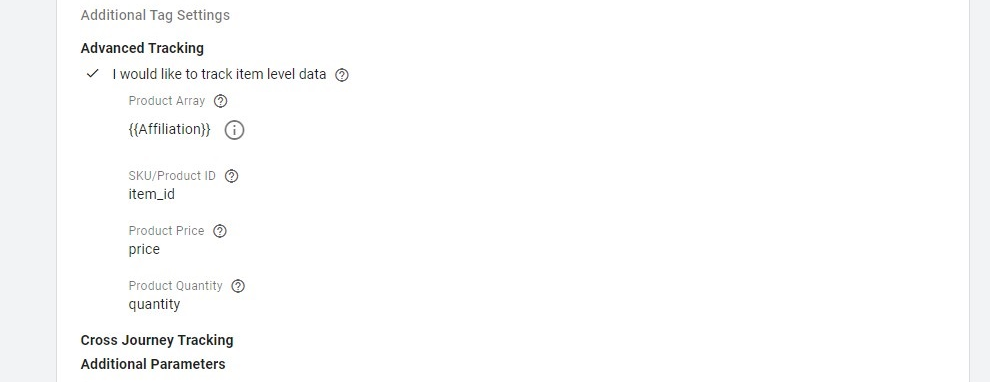
ITEM LEVEL DETAILS
| Tag Property | Description & Examples | Expected Format | Requisite |
|-------------------|-------------------------------------------------------------------------------------------------------------------------------------------------------------------------------------------------------------------------------------------------------------|----------------|----------------------------|
| SKU/Product ID | Identifier for the item purchased.
A maximum of 100 sets of item-based values is supported for each order.
The system supports an alphanumeric string with dashes or underscores only. Spaces and other characters are not permitted.
Item SKU values must be less than or equal to 100 characters. | Alphanumeric | Mandatory |
| Product Price | Amount parameter that corresponds to each individual item in the transaction.
The corresponding value (e.g., 13.49) must be in the format of numbers, and may have a decimal point. No other characters, such as dollar signs ("$") or commas (","), are supported by the CJ system.
A maximum of 100 sets of item-based values is supported for each order.
If the currency parameter is omitted from the tag or if the value is empty, products default to the program's functional currency.
The system assumes the unitPrice value is in the currency specified in the currency parameter. If the tag specifies a currency other than the functional currency, the system converts the unitPrice value to an amount in the functional currency using a current conversion rate.
Do not adjust the amount when the quantity is greater than one (e.g., do not provide `unitPrice=6.00` for two items at 3.00 each—see quantity below). | Decimal | Mandatory |
| Product Quantity | Quantity parameter that corresponds to each item in the transaction. The quantity value is multiplied by the unitPrice value to determine the total for a given item (e.g., quantity 2 of unitPrice 3.00 would result in 6.00 being recorded in our system).
A maximum of 100 sets of item-based values is supported for each order.
The quantity field does not recognize decimal amounts. For example, `quantity=1.0` is read by the system as `quantity=10`. | Integer | Mandatory |
| Product Discount | Discount parameter that corresponds to each itemId in the transaction. The discount value represents the discount applied for the associated item. The item-level discount amount is spread across all items in the series, which gives you the new individual item amount. That new amount is then multiplied by the quantity to get the subtotal for that item:
`(unitPrice - (discount/quantity)) * quantity`
For example, if `unitPrice=10`, `quantity=2`, and `discount=5`, the new amount for each item is 7.50 and the subtotal for the item would be 15.00. | Decimal | Mandatory where applicable |
9. Click on the drop down for Advanced Settings to view additional options.
10. Select Tag Sequencing > Fire a tag after [your current tag name] fires > CJ Universal Tag Container tag
11. Under Triggering, select the Trigger used on **the confirmation page** of your site for this action. We recommend firing the tag on DOM ready to ensure it triggers promptly and prevents any loss of traffic from the tag firing too late or the consumer leaving the page before it fires.
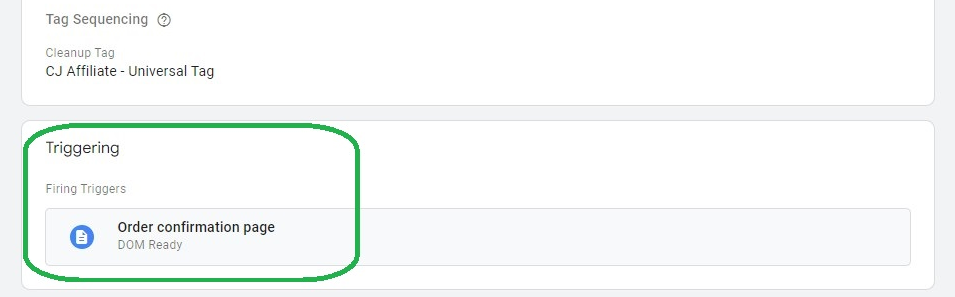
12. Select Save.
Once you have successfully set up all three tags in GTM, please work with the CJ Client Integration Engineering team to place test orders and ensure the integration is working correctly.