## Overview
Our turnkey plugins have made it easy for global advertisers with ecommerce stores running on platforms like Magento, Wordpress, Shoplazza, etc to integrate with the CJ Network. Advertisers can tap into the full spectrum of benefits offered by CJ’s Universal Tag and seamlessly join the CJ Network within minutes. One such solution is the [Shopify - CJ Network Integration Plugin](https://apps.shopify.com/cj-network-integration) launched in Oct, 2020.
### Shopify’s Custom Pixel
Custom Pixels are Javascript code snippets and run in a secured sandbox environment. It is used to track customer events. CJ’s latest plugin version leverages this Shopify feature to track orders and unlock conversions & item-level tracking.
[Learn More About Custom Pixels](https://help.shopify.com/en/manual/promoting-marketing/pixels/custom-pixels)
**Please Note**: Any new installations of the plugin will require the store to use Shopify’s Custom Pixels.
## New Installation Guide
A Shopify merchant installing the plugin for the first time, would have to follow the steps provided, irrespective of the checkout system used by the store.
### Recommendation
+ Please reach out to a CJ team member if you plan to integrate using the plugin.
+ Do not remove or modify any existing CJ tracking solution from your program while you integrate this new tracking solution unless explicitly instructed to by a CJ team member. Any changes made to an existing tracking solution in a production environment can have negative consequences for your affiliate marketing program and require additional work to restore tracking and retroactively provide details for missed actions.
### Prerequisite
1. Please ensure that you have the permissions to **View customer events** and **Manage and add custom pixels** for the store.
If you are a Shopify Partner or Collaborator, the admin can grant this permission by following below steps:
+ Navigate to Settings > Users and Permissions.
+ Select the collaborator and scroll down to the Store settings under Store permissions.
+ Enable permissions for _View customer events_ and _Manage and add custom pixels_
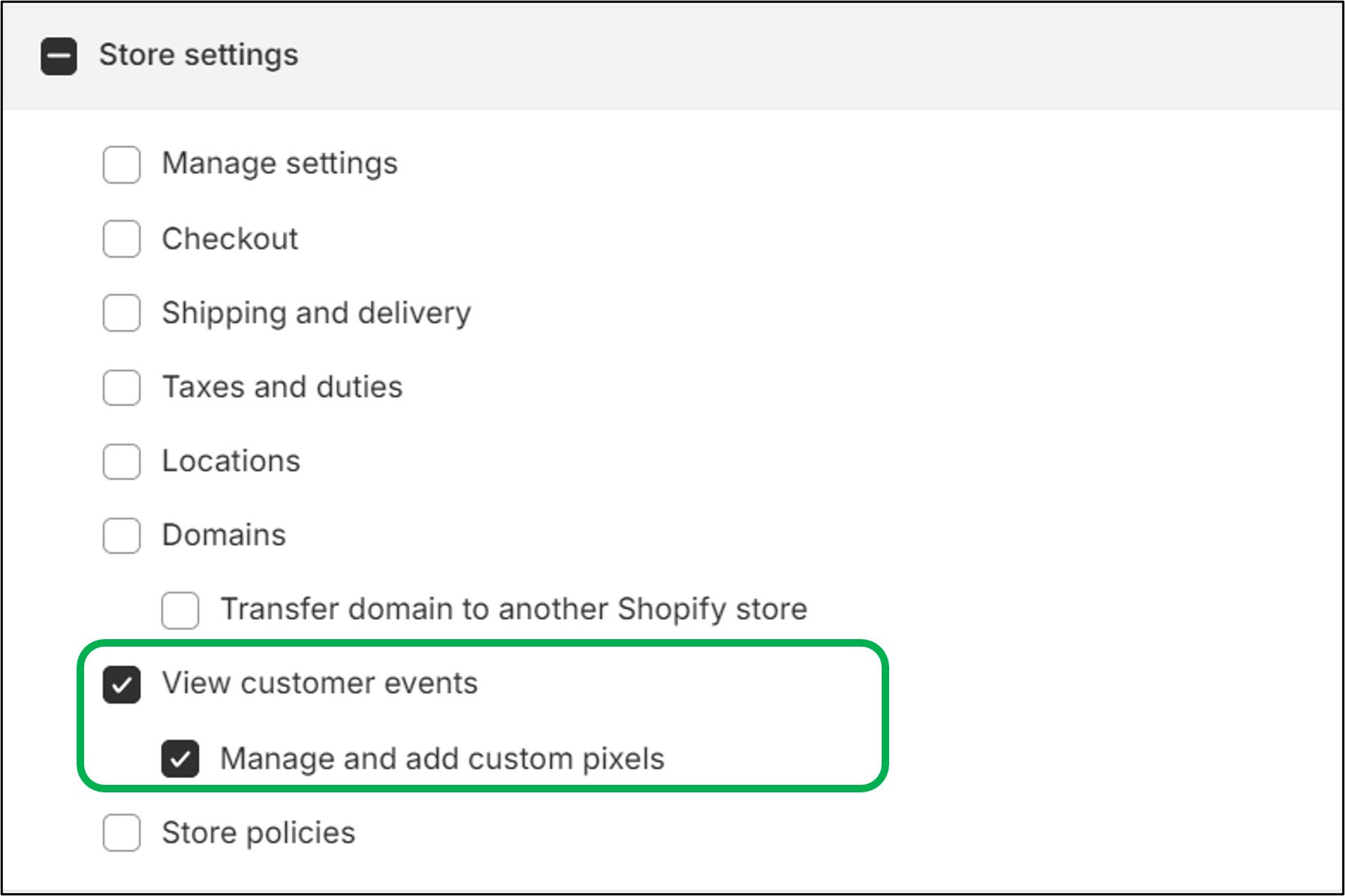
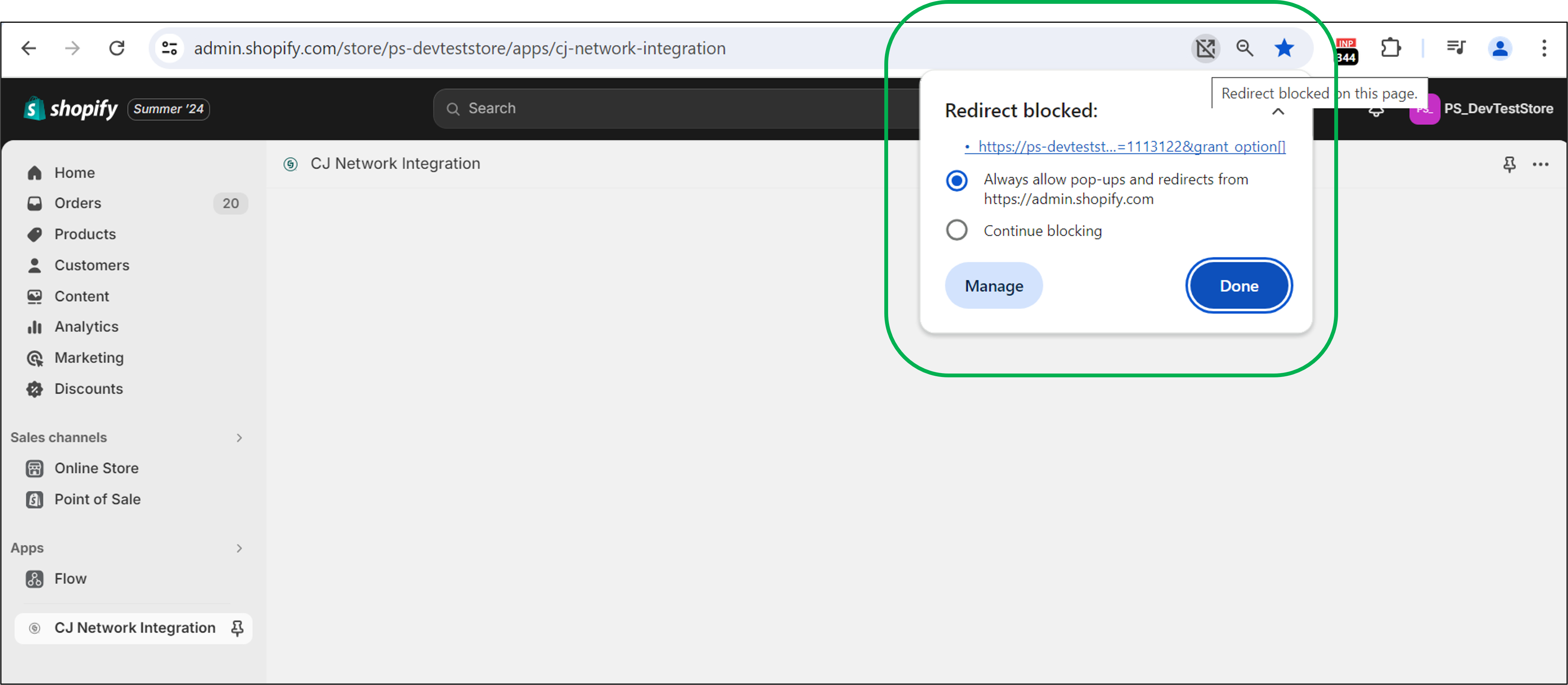
2. Update the browser settings, to allow the Shopify Admin page to send pop-ups and use redirects. We recommend using Google Chrome.
3. Ensure you have permission to install an app.
### Steps
1. [Log into your Shopify Admin panel](https://accounts.shopify.com/store-login).
2. Click on [this link](https://apps.shopify.com/cj-network-integration).
3. Select "Install".
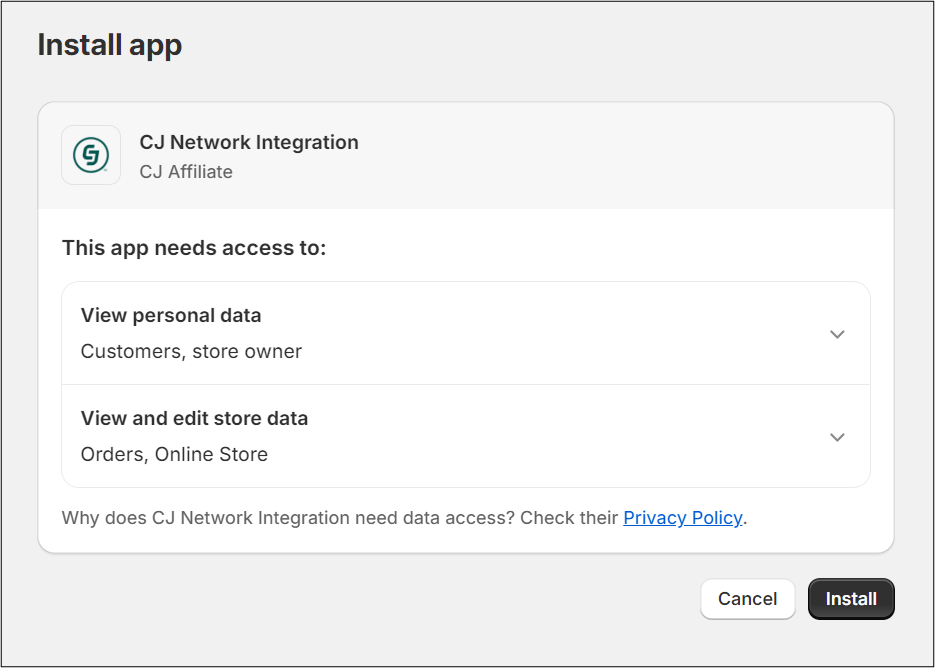
4. On the next “Install app” screen, click on “Install”.
 **Please Note**:
+ Neither the plugin nor CJ Network store Customer’s personal data like address, phone number, etc. We are only leveraging Customer’s order count to derive customer status (new vs. returning).
**Please Note**:
+ Neither the plugin nor CJ Network store Customer’s personal data like address, phone number, etc. We are only leveraging Customer’s order count to derive customer status (new vs. returning).
+ If the plugin is not loading, please check for the pop-up blocker in the address/URL bar. Ensure that you are allowing pop-ups and redirects.
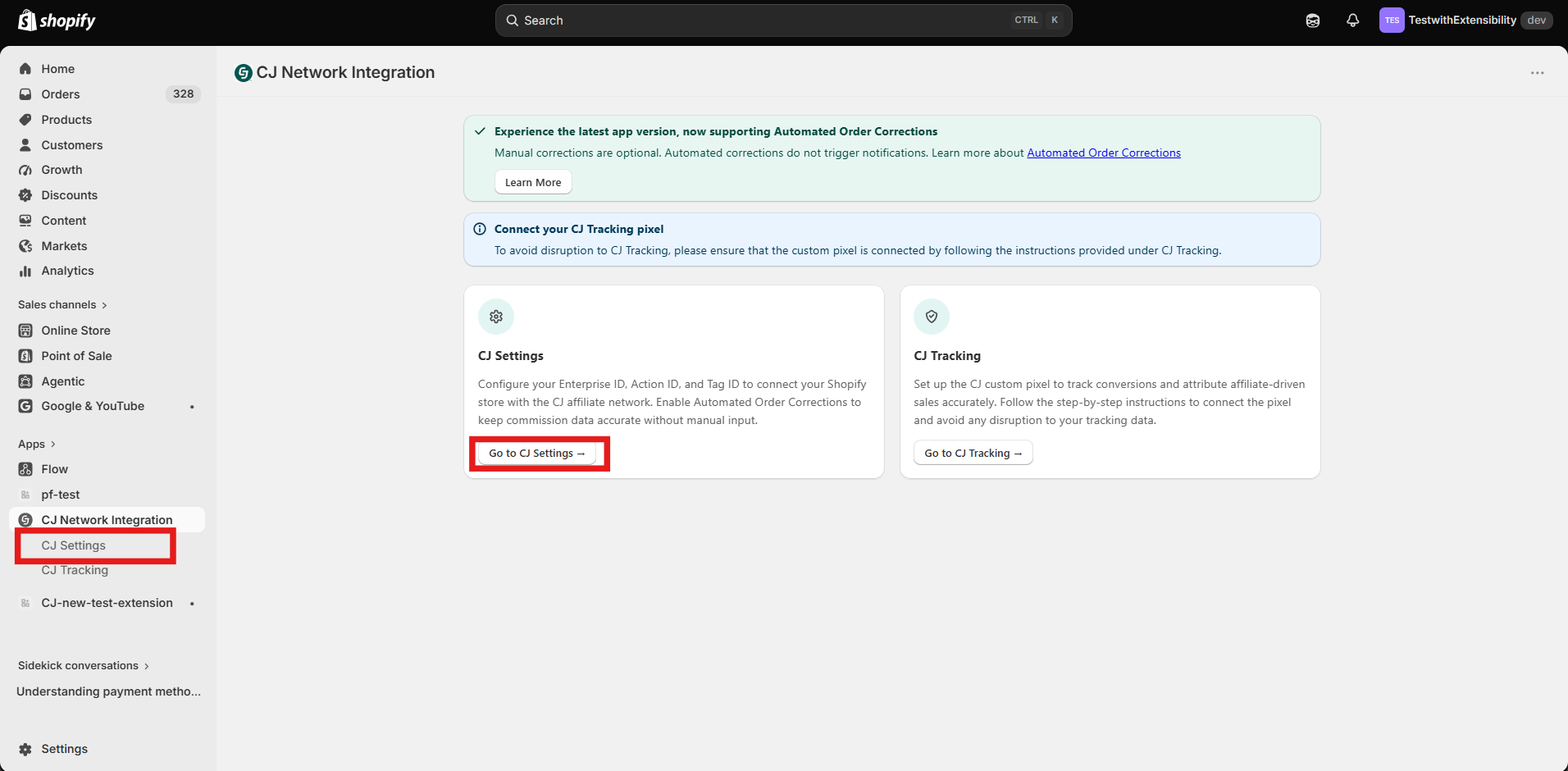
5. On the Dashboard screen click on CJ Settings button or Navigate through the side bar, to enable the plugin.
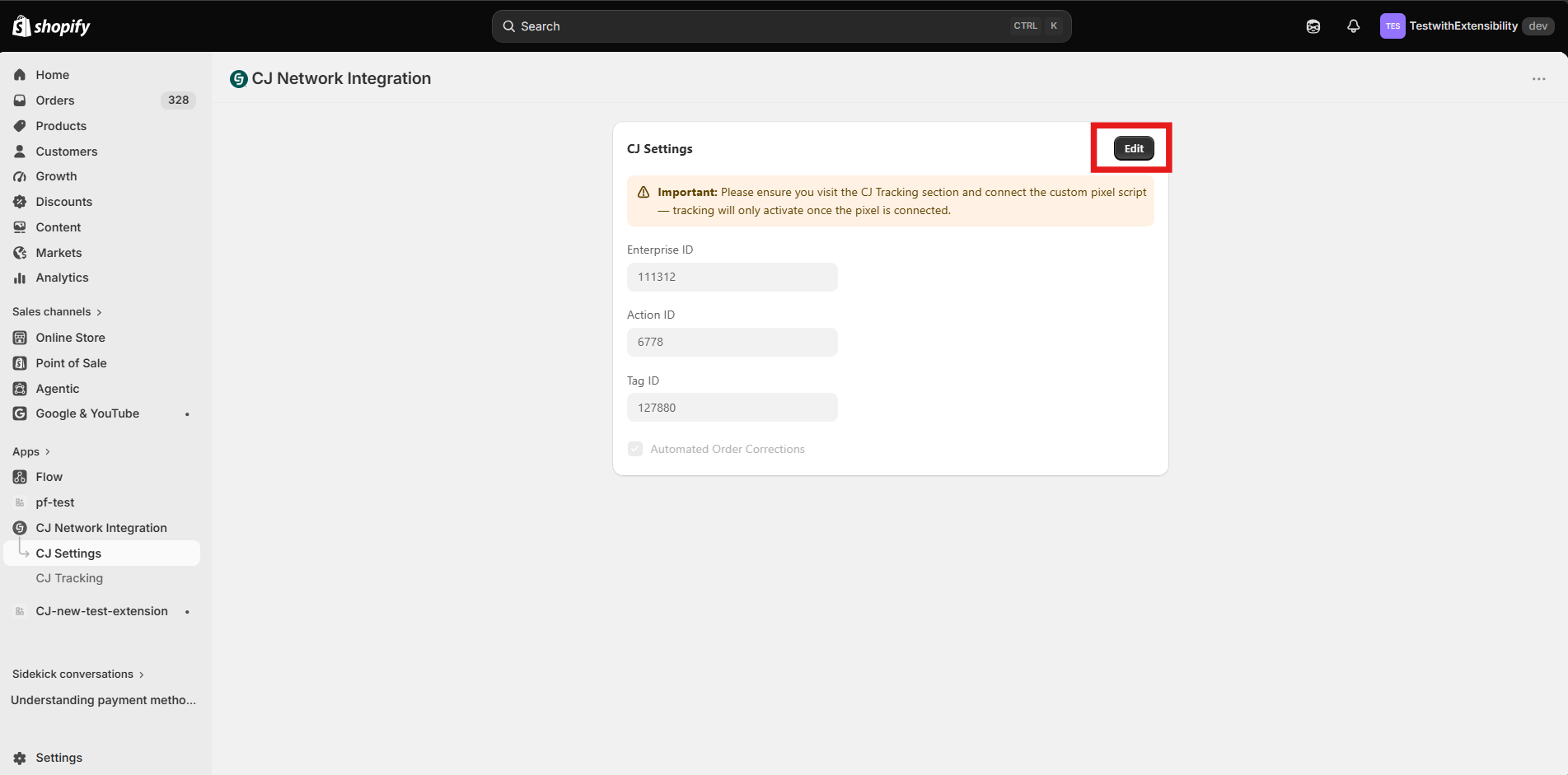
6. Click on Edit to enter the "Enterprise ID", "Action ID" and "Tag ID" provided by CJ CIE team.
7. To enable [Automated Order Corrections] (https://developers.cj.com/docs/plugins-&-templates/shopify-plugin-installation#shopify-order-corrections-update), select the checkbox to opt in.
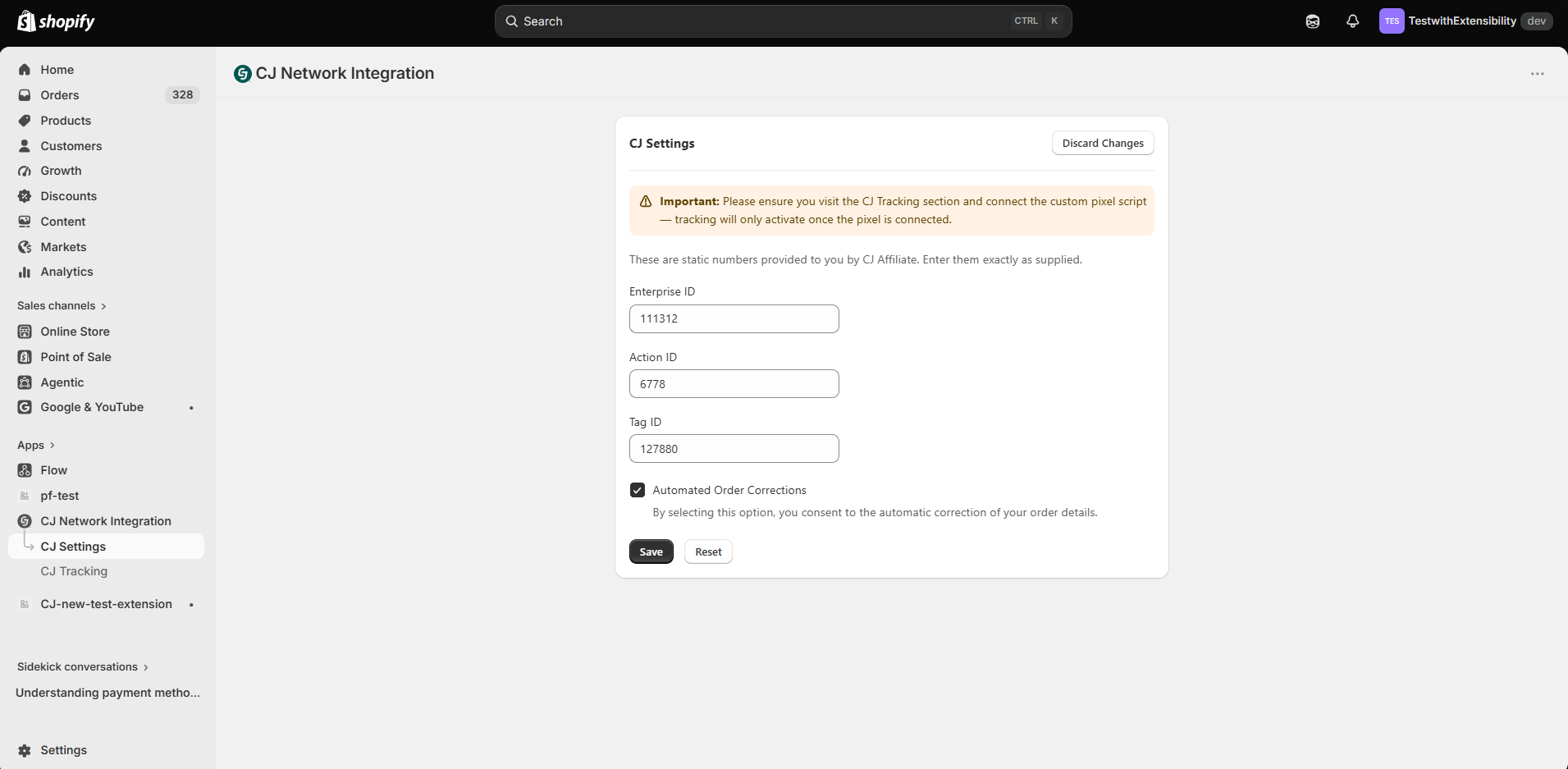
8. Click “Save” to save your settings and go to next tab, CJ Tracking to connect the custom pixel script for tracking.
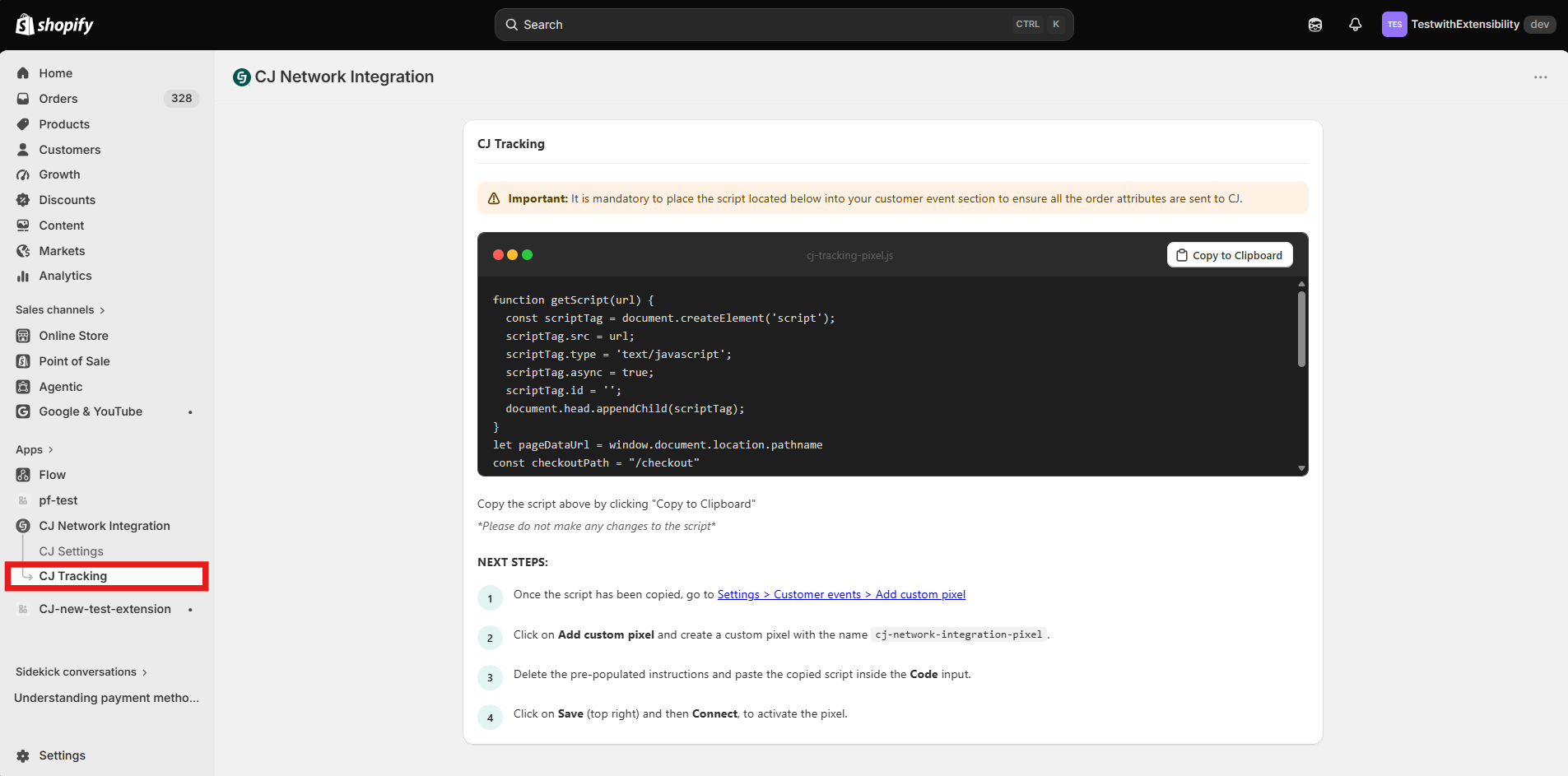
9. Click on “Copy To Clipboard” in the CJ Tracking code snippet.
**Please Note:** In case customizations are needed, use the script provided by the CJ CIE team.
10. Please navigate to Settings > Customer events > Add custom pixel or click on the on the link provided in the 'Next Steps'
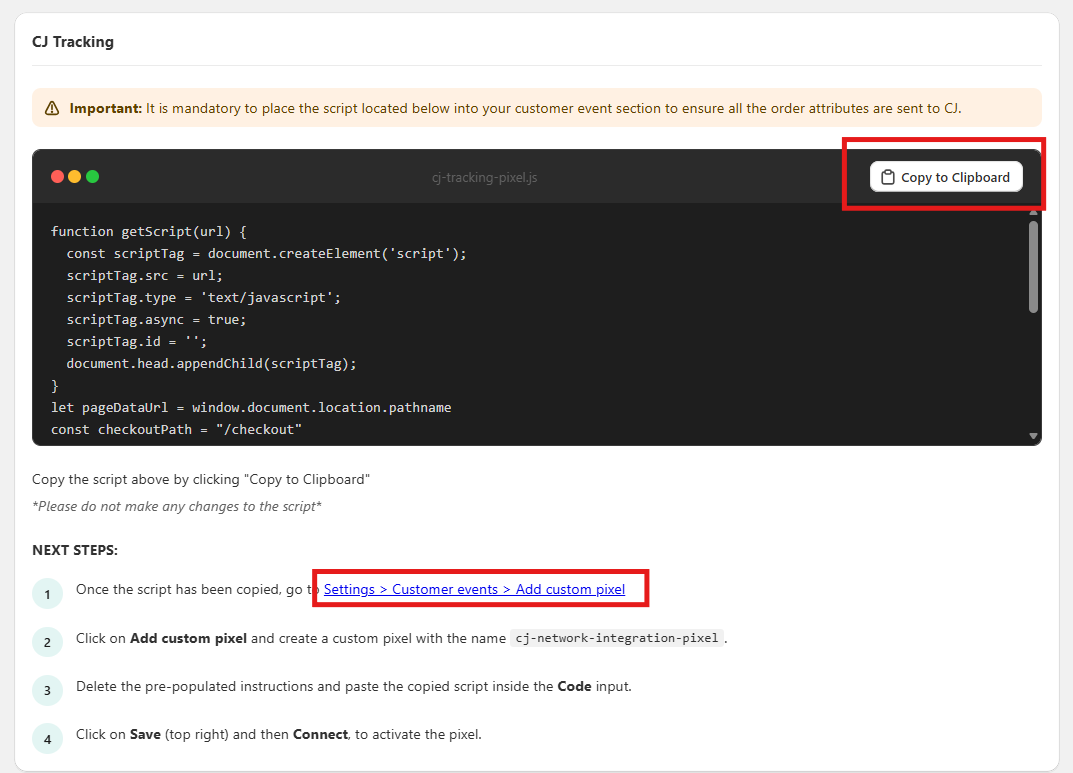
11. Click "Add custom pixel".

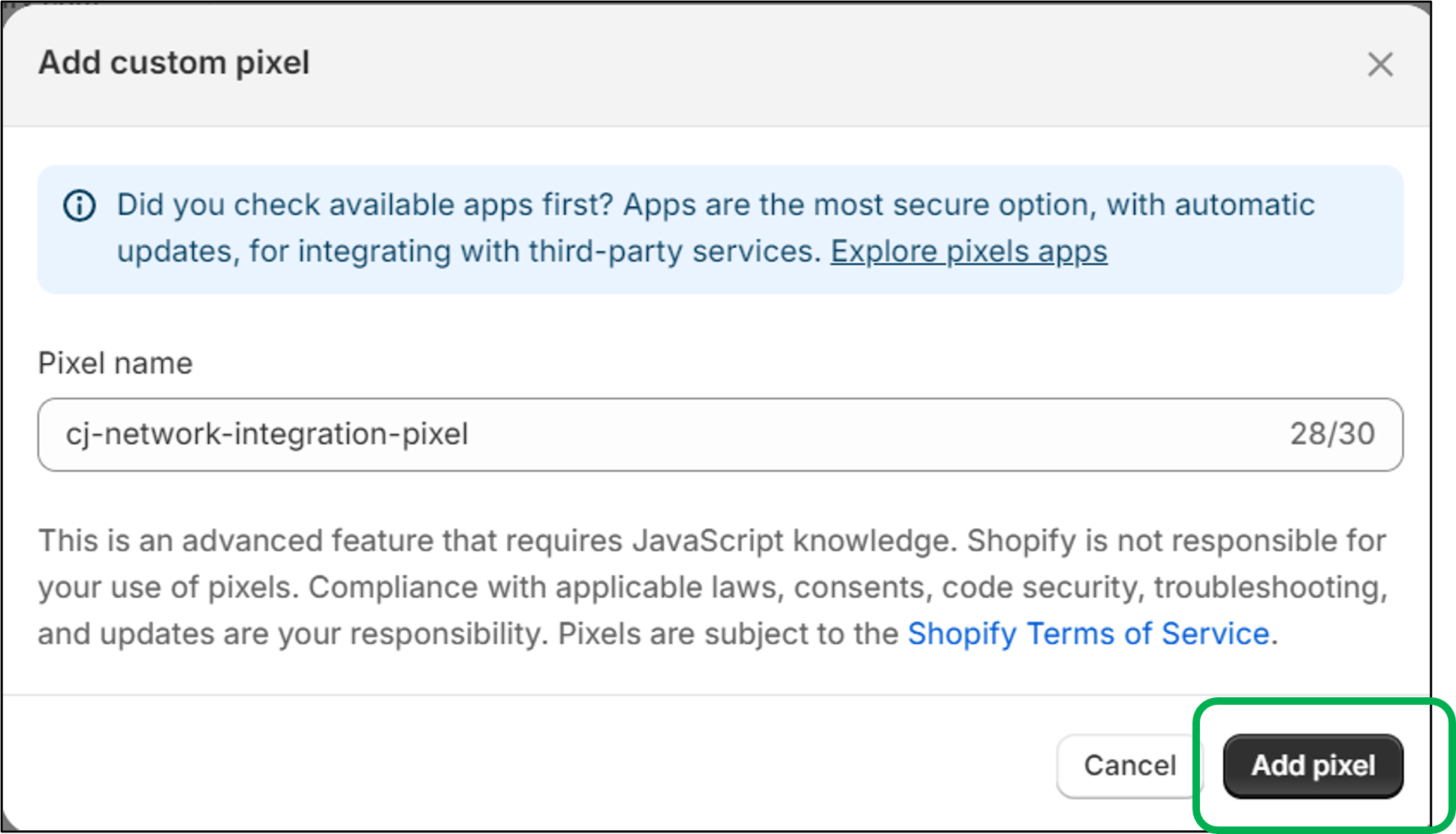
12. Create pixel with the name 'cj-network-integration-pixel’ and click on “Add Pixel”.
13. On the next screen, for Customer privacy settings, Shopify will require you to make selections on whether permission is necessary, the type of data purpose for information collected, and whether the collected information constitutes a 'sale' of data.
Like Shopify, CJ cannot provide guidance to advertisers on how to adhere to applicable laws and relevant jurisdictions. CJ is transparent and open with the data we collect, use, and share as part of our services to advertisers, publishers, and consumers.
Some relevant information that pertains to our tracking technology are
+ CJ uses only Pseudonymised Personal Data for the purpose of attributing a customer purchase to an originating click from a publisher partner.
+ CJ does not use cookies, customer information, or our ad technology to customize ad content based on a customer's browsing history.
You can review the data CJ collects, the method for collection, the purpose of data collection, and other relevant information in our Services Privacy Policies: [Global privacy policy](https://www.cj.com/legal/privacy-policy-services) and [Europe and UK-specific privacy policy](https://www.cj.com/legal/privacy-policy-services-uk).
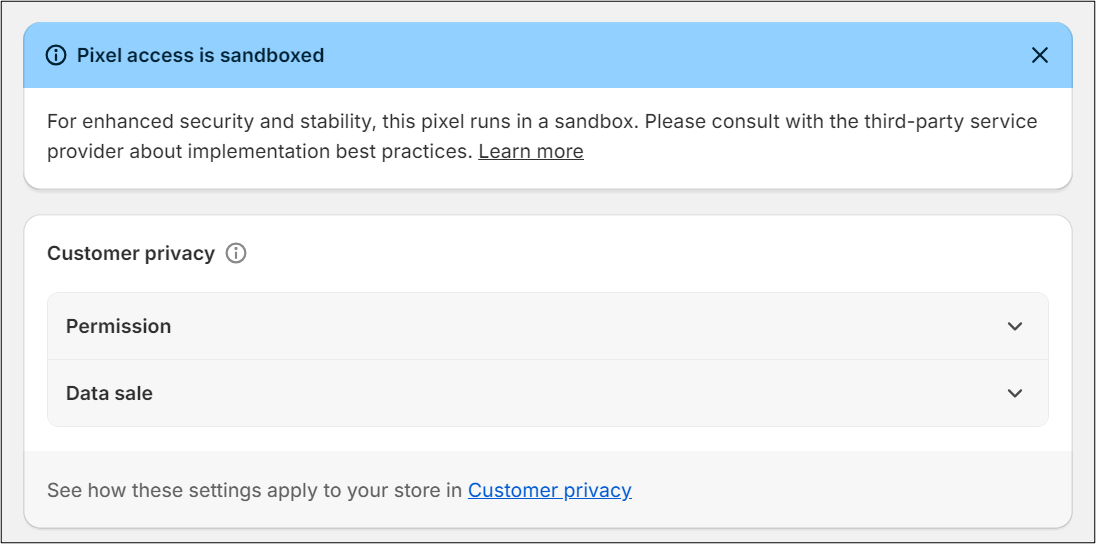
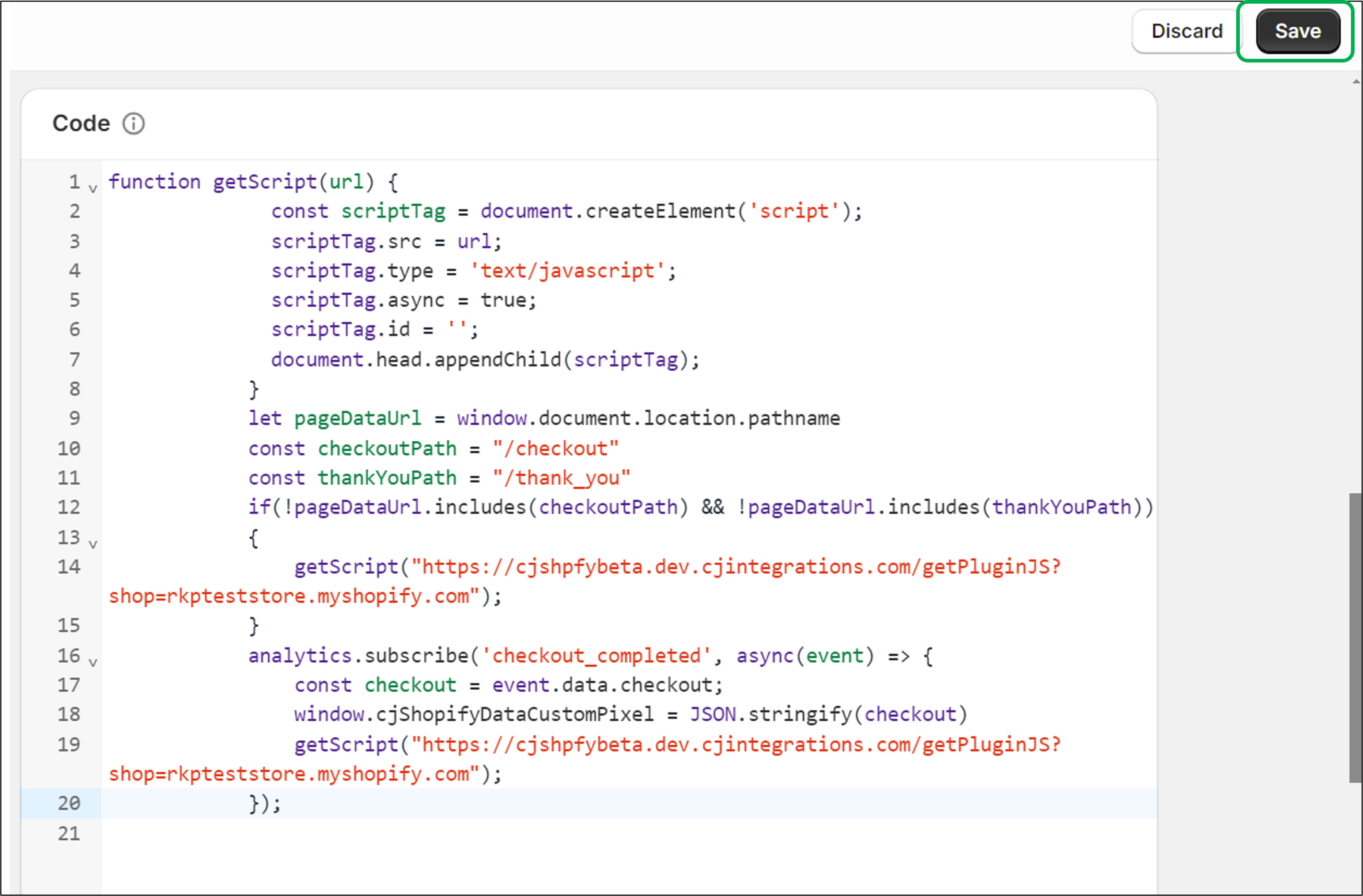
14. Delete the prepopulated instructions in the "Code" input, before pasting the custom script copied in Step 8.
15. Click “Save” on the top right.
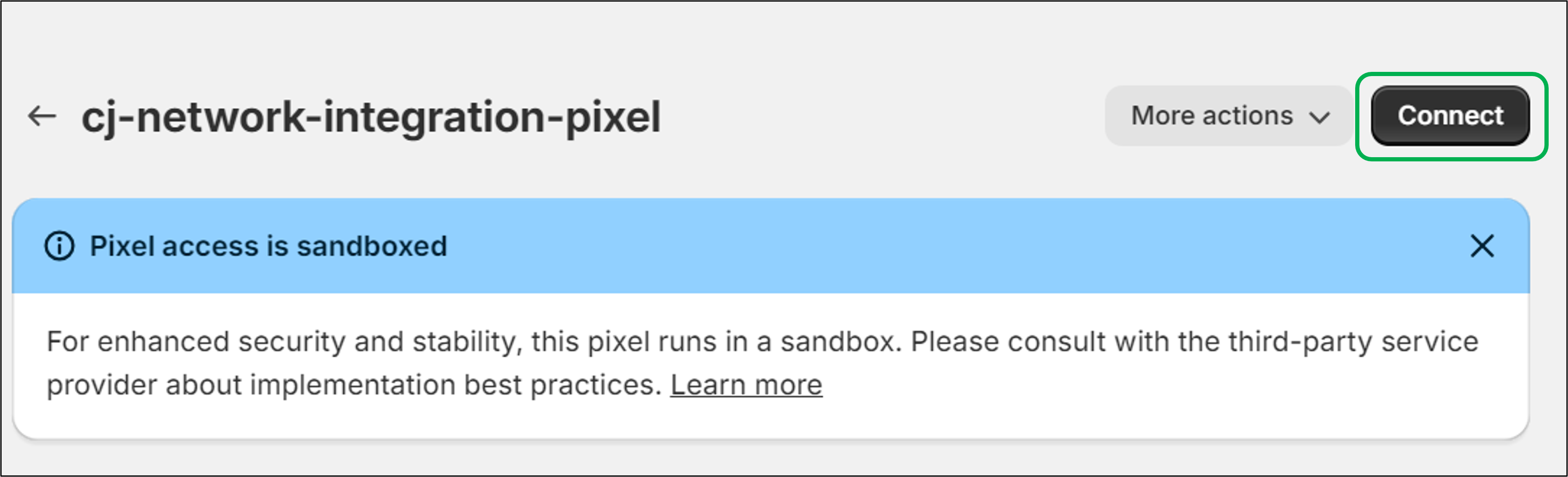
16. Once saved, click “Connect” to initialize the Custom Pixel.
17. Please work with the CJ CIE team, to place test orders and confirm successful integration via the plugin.
## Shopify Order Corrections Update
### Overview
The Shopify Order Corrections enhancement within the CJ Shopify App helps automatically identify and apply corrections for eligible order cancellations and restatements that occur within Shopify after the feature is enabled. This article outlines how functionality works, what to expect in reporting, and the responsibilities that remain with advertisers.
### How the Shopify Order Corrections Feature Works
Once opted-in, the Shopify plugin can identify cancellations and restatements that occur on the orders and reads these corrections and sends them to CJ for tracking attributions to correct them. Corrections apply regardless of when the original order was placed, as long as the cancellation or restatement happens after the enhancement is enabled.
### What Is Covered Automatically
Cancellations or restatements that occur in Shopify after the enhancement is enabled.
Corrections to transactions that were already visible in CJ reporting, even if the order was placed prior to enablement.
### What Is Not Covered Automatically
Cancellations or restatements that occurred before the enhancement were enabled.
Corrections made outside of Shopify, such as cancellations from fulfillment systems.
Corrections received after a transaction has reached Locked or Closed status.
### When is Manual Corrections Still Required
Advertisers should continue submitting manual corrections for cancellations or returns that occurred before the app update and for any adjustments not captured directly from Shopify. Please continue following your existing manual correction process in these scenarios.
### Transaction Locking & Return Window
Enabling the Shopify Order Corrections enhancement does not change CJ’s locking cycle. Transactions will continue to lock based on the advertiser’s program terms. For programs with a 60-day custom lifecycle, transactions will lock 60 days after the event date. Once locked or closed, transactions cannot be corrected or extended.
### Reporting Behavior
Corrections appear directly within CJ reporting against the original transaction.
There are no system notifications when corrections occur.
Corrections are applied as Shopify updates are detected and not on a fixed schedule.
### Ongoing Review & Fraud Monitoring
Even with automated corrections enabled, advertisers should continue reviewing transactions on a regular basis. This includes validating transaction accuracy, confirming order amounts, and monitoring potential fraud. Automated corrections do not replace proactive monitoring.
### Important Limitations
Corrections occurring after the locking date will not update transactions in Locked or Closed status.
This enhancement does not capture changes made outside of Shopify systems.
_For any queries, please reach out to CJ!_